BlogProduct
Answer WhatsApp from your phone before the 24-hour window closes
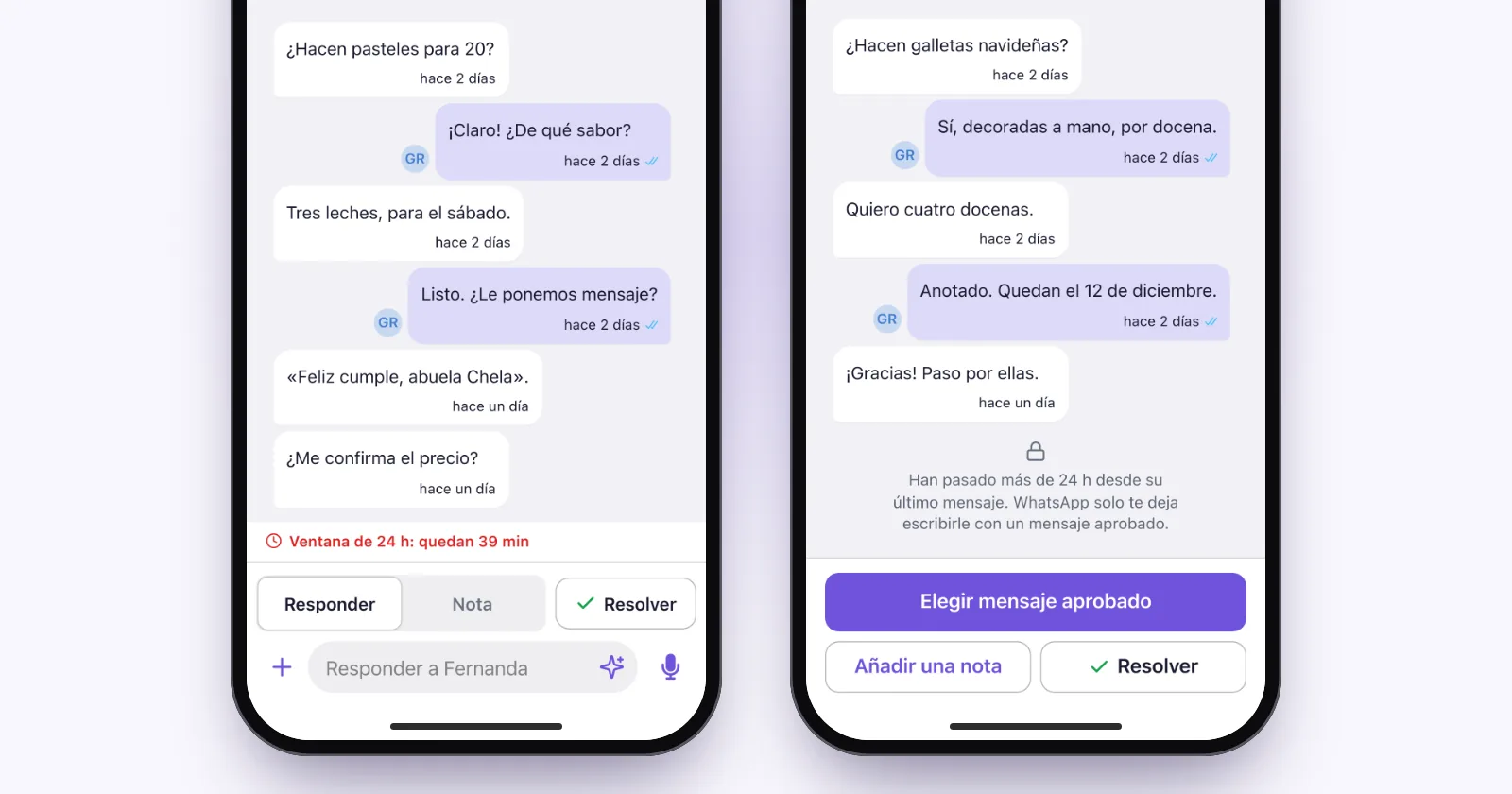
Yesterday at 5:40 pm a customer asked how much a cake for 20 people would cost, and nobody replied. It's now 5:00 pm and you're out. With a number on the official WhatsApp API, you have 40 minutes to answer with a normal message. At 5:40 their 24-hour window closes, and from then on you can only write to them with a message Meta has approved in advance. (The customer, the times and the people in the screenshots are all made up.)
When you're the only one answering the number, those 40 minutes rarely happen while you're sitting at your computer.
Your phone's browser is all you need to keep an eye on that countdown: open app.pulpo.chat, sign in with your account and the console fits the screen, with nothing to install. What matters here comes down to two things: keeping the window open for whoever is waiting, and picking up the customers whose window has already closed.
The rule that sets the clock
If your number is on the official WhatsApp Business API, Meta lets you write freely to a customer for the 24 hours after their last message. After that, you can only write to them with a template, a message Meta approves beforehand. The full rule is in our article on the 24-hour window (in Spanish).
"Freely" is about what you can write, not about what it costs. Since October 1, 2026, on top of templates, Meta charges for the replies you send inside the window once the free monthly allowance each number gets is used up. It bills you directly, separately from your PulpoChat plan.
Whose window is about to close
On the phone, the Inbox is the first icon in the bar at the bottom; only the tab you're on has its name written out. A number on the icon tells you how many customers are waiting for an answer.
When you open it, the first group is Their 24 h window is closing: customers who sent the last message and have less than three hours left, starting with the one that closes first. The 5:40 pm customer would be the first one there. Below come Yours, not replied and Unassigned, longest wait first.
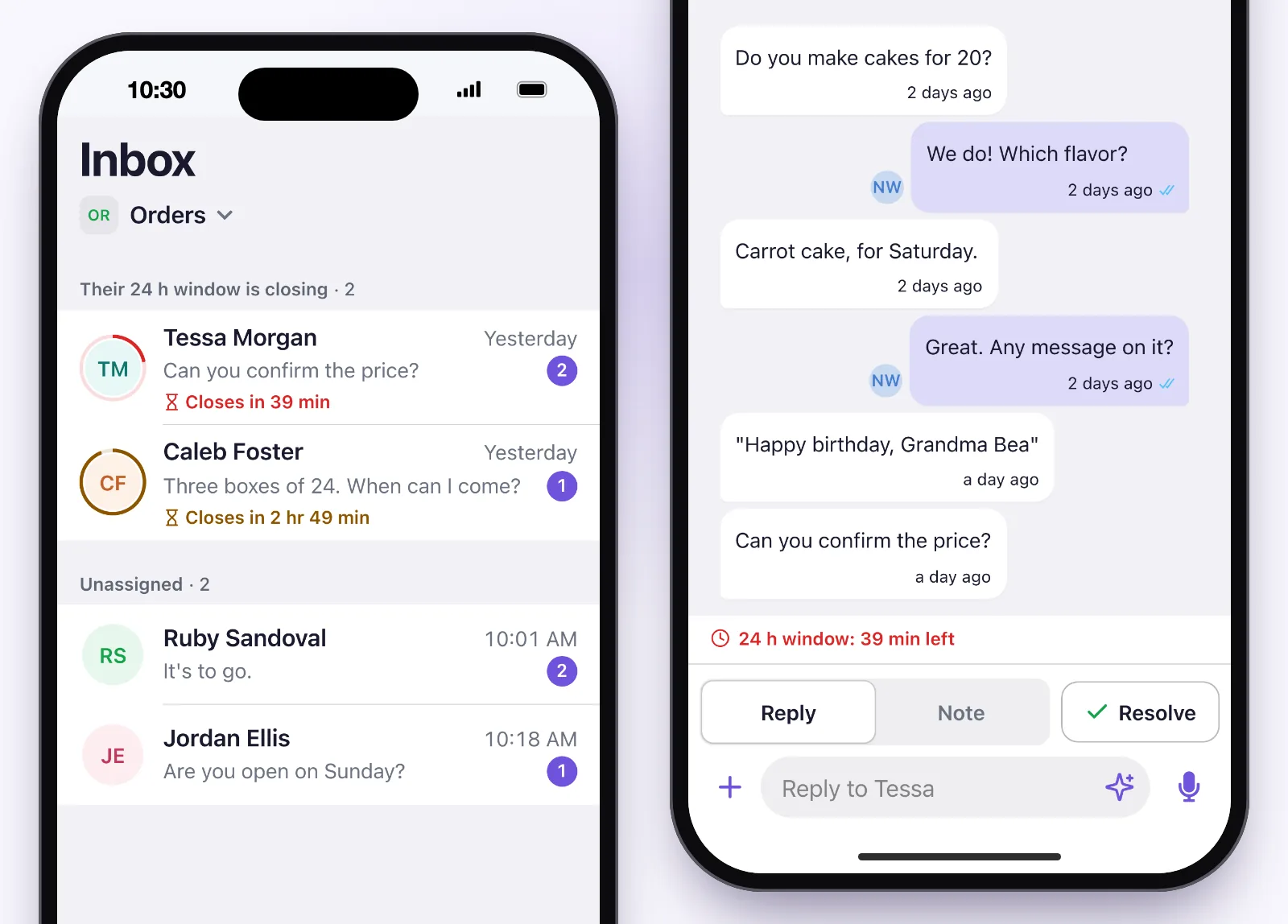
That first group only looks at who wrote last. There are two cases the Inbox does count as waiting but never moves up into it:
- Only your automatic reply answered. Your out-of-hours message went out, so the last message is yours. PulpoChat still treats the customer as waiting for a person, and their window keeps running from their last message, but the chat stays in Yours, not replied or Unassigned, with no window warning.
- Your reply didn't reach them. If something you sent failed, the chat counts as waiting again, in those same groups and also with no warning.
Open them and check how much time is left: they may be down to minutes even though they're not in the first group.
Once the window closes, the chat leaves the Inbox, because a normal reply can no longer fix it there. You'll find it in Chats, with Window closed on its line. What to do with it comes further down.
Reply before it closes
When you open the chat, above the text box you can see how much time that customer's window has left, for example 24 h window: 40 min left. If the customer sent the last message, it turns amber with less than three hours to go and red with less than one; at 40 minutes, you'd see it in red. If the last message is yours, such as an automatic reply or a send that failed, it stays grey even with minutes to go.
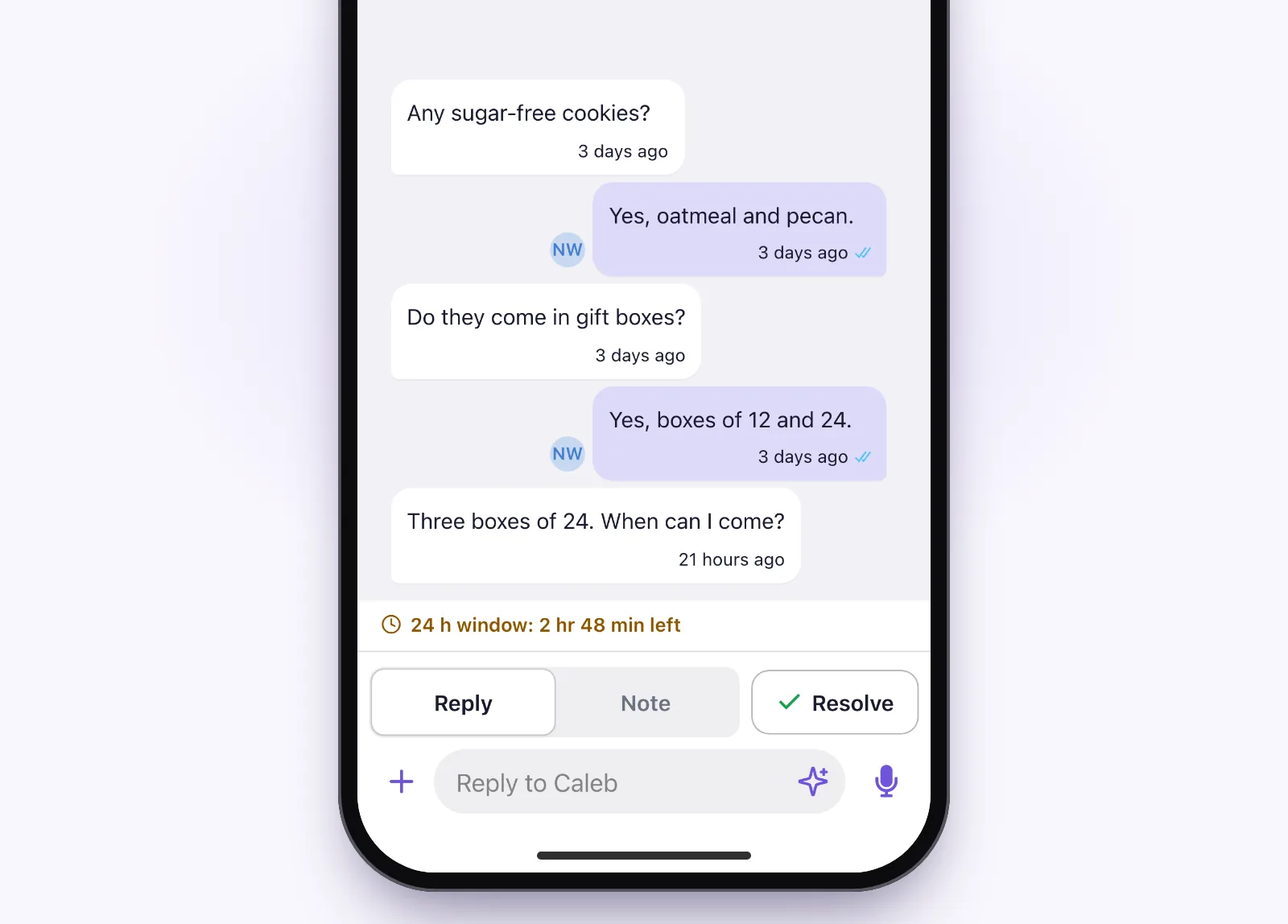
To answer quickly with your thumb, the + opens Add to message, where your Quick replies are: what you always explain about prices, opening hours or picking up in store, already written.
And if the message can't go out right then, the phone tells you before sending it. For example, if the number is outside its working hours, it offers Leave it in the queue. Before you accept, check how much time the window has left: a queued message goes out when the number is back within its hours, and the 24-hour window keeps running in the meantime.
The contact page, to pick up with context
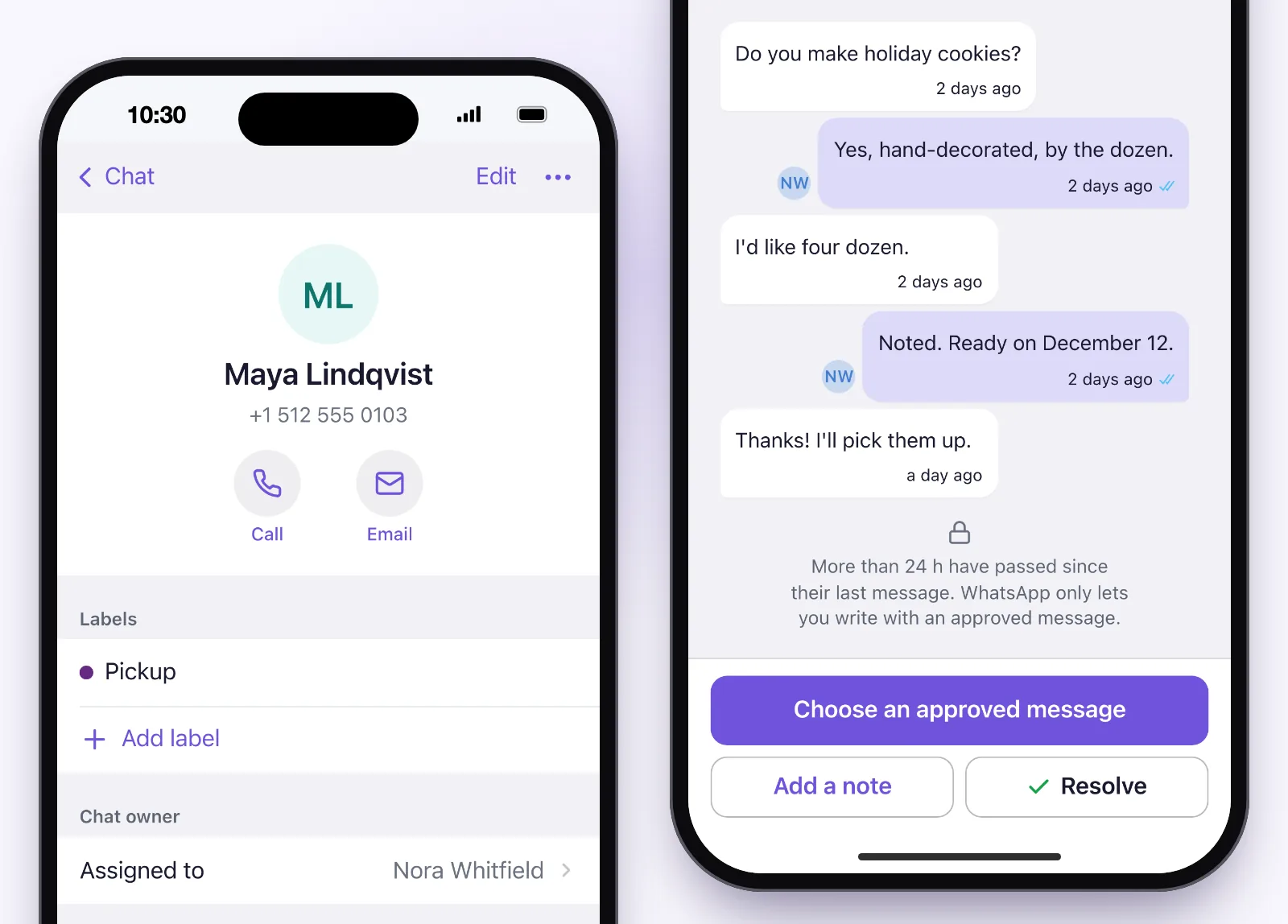
Before you write to someone who has gone a day without an answer, it's worth knowing what was left open. Tap their name at the top of the conversation and their contact page opens:
- Their number, which you copy with a single tap.
- Labels, with Add label. A label such as "Pickup" then shows on their line in Chats, so you can tell at a glance that they'll come and collect the order.
- Chat owner: who their chat is assigned to.
- Private note, or Add a note: the place for what you don't want to forget about that customer, such as an order that isn't settled yet or the time they'll come by. The customer never sees it.
- Edit, if your user is allowed to change the contact's details, for instance to save their name spelled correctly.
To get back to the conversation, tap the Chat button at the top.
Having the name saved properly matters more than it seems, because of what comes next.
When the window has already closed
At the end of the conversation you'll see it in grey: "More than 24 h have passed since their last message. WhatsApp only lets you write with an approved message." Where the text box used to be, you get Choose an approved message, next to Add a note and, if the chat is yours, Resolve.
Tapping Choose an approved message opens three steps that fill the screen:
- Pick an approved message. The list is your approved templates. If you don't have any yet, it tells you: they're created on your computer and then show up here.
- Complete the message. It asks for the blanks one at a time. It only fills in the name by itself when the template's variable is named for it (name, first_name, nombre or full_name) and the contact has a name saved on their page; then you can see where it came from and tap Change. If the blank is a number, like
{{1}}, it asks you for it like any other. - Review and send. You see the message exactly as it will go out, From which number and To whom. Under Cost it reminds you that Meta charges you directly, at its own rate, and See Meta's rates is right there.
Once it's sent, the conversation confirms it: "You sent them an approved message. Once they reply, you can write freely." If they reply, you have a window again and carry on with normal messages. If they don't, the button becomes Send another approved message.
A tip for the day you need it: keep at least one template meant for picking conversations back up, something like "Hi, I'm following up on your question from yesterday. Shall we carry on?" Meta has to approve it before you can use it, so don't leave it until the window has already closed.
Everything else, in a few lines
Connecting your number and building Flows stay on your computer. If you tap something that needs a bigger screen, the phone says so and offers Email me the link, which sends it to your email address, or Copy link.
Say you leave PulpoChat open on your computer at the shop and head out, carrying on with replies from your phone. When you get back, your computer is waiting with "Your session is open in another browser". Click Use here and carry on where you left off; from then on, it's the phone that gets disconnected.
In short
If you handle an official API number on your own, the phone is mostly there to help you watch a clock. Look first at the Their 24 h window is closing group in the Inbox and reply before the warning turns red. Go through the chats that only got your automatic reply as well: they don't move up into that group, but their window keeps running. Read the contact page before picking someone up. And if the window has closed, Choose an approved message takes you there in three steps, with Meta's cost in view.
Not answering your WhatsApp with PulpoChat yet? Create your account; the number itself is connected from your computer. From then on, you can keep an eye on every customer's window from your phone as well.
Keep reading
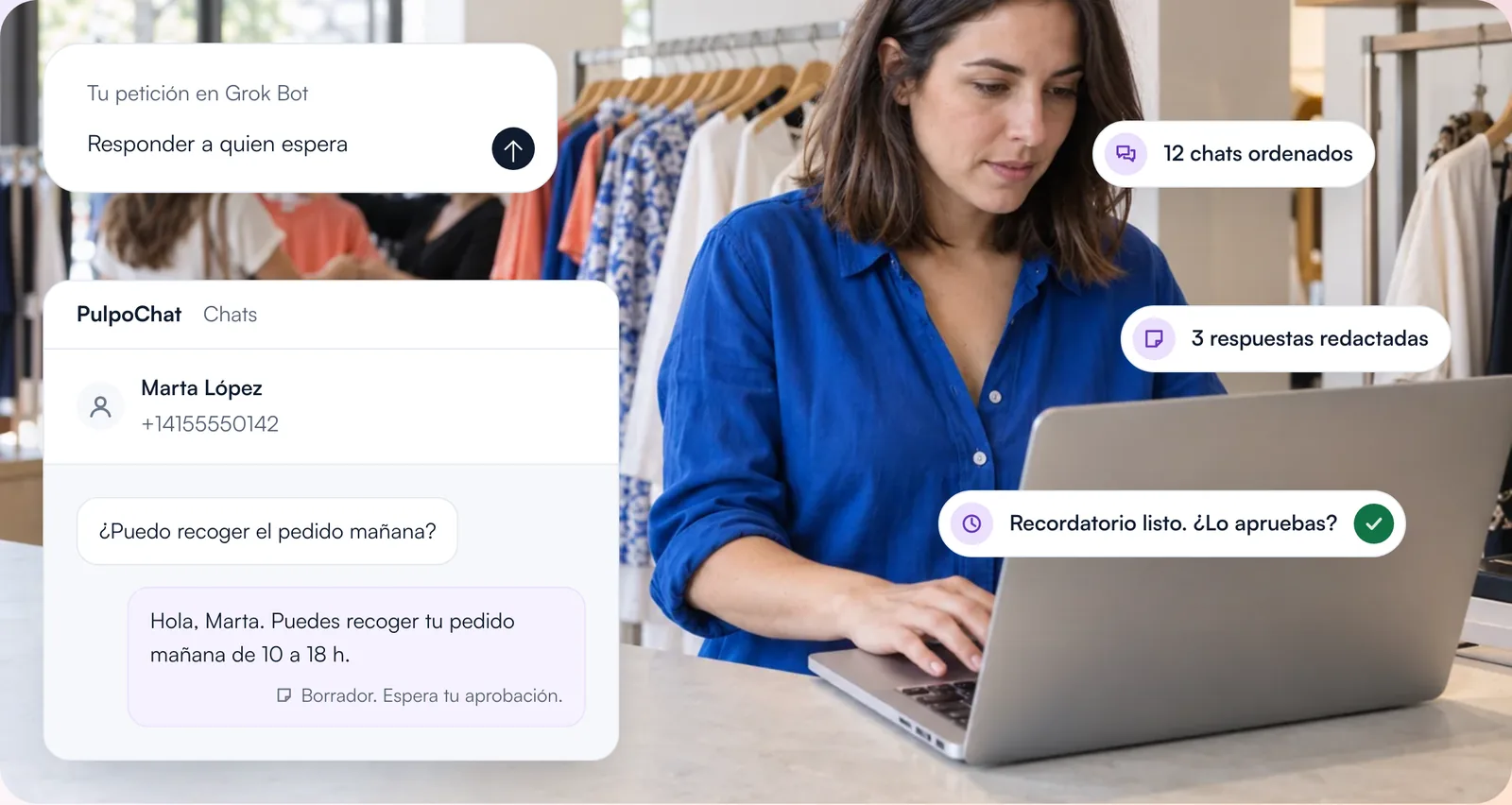
Grok Bot y WhatsApp: tu bandeja en orden, y nada sale sin tu sí
Añade el bot de PulpoChat a Grok Bot y te ordena los chats de WhatsApp, te redacta respuestas y seguimientos y te prepara recordatorios. Nada le llega a un cliente hasta que lo apruebas.
Not translated yet: shown in Spanish.

WhatsApp Business o API oficial: lo que la API te quita
Todas las comparaciones cuentan lo que ganas. Esta cuenta lo que pierdes, con la lista exacta: editar, borrar y el «escribiendo» dejan de funcionar. Y quién cobra qué.
Not translated yet: shown in Spanish.

Varias personas en el mismo WhatsApp: cómo se reparte de verdad
Las tres formas caseras de compartir un WhatsApp y qué se rompe en cada una. Y el detalle que nadie planifica hasta que alguien se va de la empresa.
Not translated yet: shown in Spanish.