PulpoChatStart free

WhatsApp bookings with Google Calendar

From “any openings?”to an appointment.

A WhatsApp inquiry can lead to an appointment in your calendar. You prepare the availability, data and booking rules.

Requires a plan with Flows, configured connections and a test execution.

PulpoChatResult in Google Calendar

Yes, confirm my appointment for Tuesday at 5 pm.

Result in Google Calendar

Ana's appointment · Tuesday, 5 pm · configured calendar.

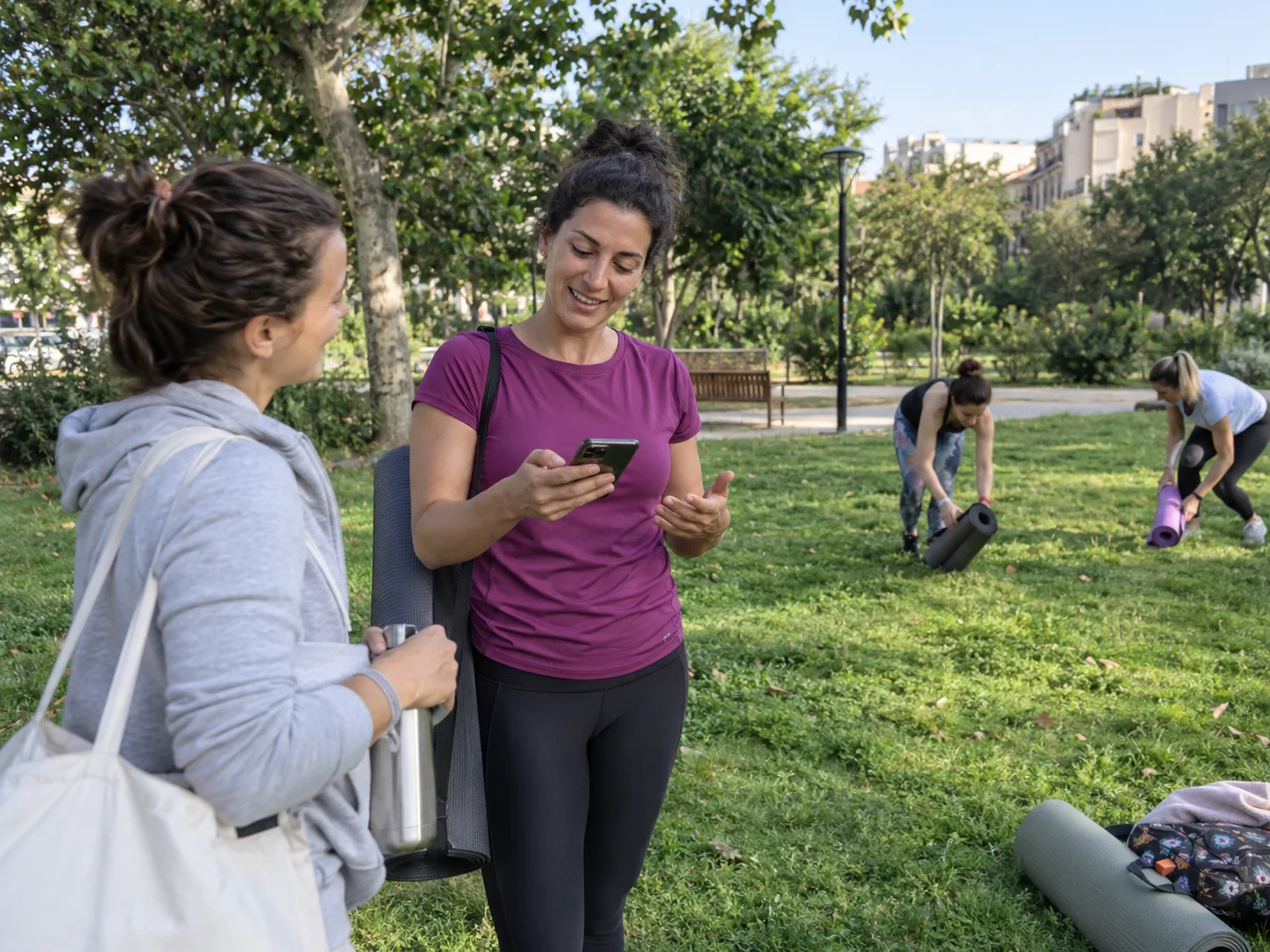
A yoga teacher checks her phone after an outdoor class.

A task in your business

Yes, confirm my appointment for Tuesday at 5 pm.

PulpoChatResult in Google Calendar

Yes, confirm my appointment for Tuesday at 5 pm.

  1. WhatsAppReceive the confirmation
  2. Google CalendarCheck availability
  3. Google CalendarCreate the event

Result in Google Calendar

Ana's appointment · Tuesday, 5 pm · configured calendar.

Start from a prepared flow

Adapt connections and data

Test before activating

From the start to the result.

The example starts with a checked opening and a time confirmed by the customer.

The customer confirms the offered time

WhatsApp bookings with Google Calendar

Yes, confirm my appointment for Tuesday at 5 pm.

The example starts with a checked opening and a time confirmed by the customer.

PulpoChatResult in Google Calendar

Yes, confirm my appointment for Tuesday at 5 pm.

  1. WhatsAppReceive the confirmation

    The agent gathers the data required for the appointment.

  2. Google CalendarCheck availability

    Calendar Read checks the connected calendar.

  3. Google CalendarCreate the event

    Calendar Create records the appointment with the prepared data.

Result in Google Calendar

Ana's appointment · Tuesday, 5 pm · configured calendar.

Check the created event and the reply to the customer in a test execution.

Explore the template steps

The diagram shows the catalog's nodes and connections. Review their fields and credentials inside the Flows editor.

PulpoChat TriggerAI AgentOpenAI Chat ModelSimple MemoryCalendar ReadCalendar CreateCalendar DeleteGoogle SheetsGoogle Sheets - Add rowsGoogle Sheets - Update …GmailDownload AudioTranscribe AudioAudio InfoSend MessageMessage Type

The flow is prepared. You provide the configuration.

Sign in to Pulpo, open Flows and find this template by name. The “Use template” button loads the flow into the editor.

  1. Choose “Use template”

    Open Flows in your account and choose this template from the catalog. «WhatsApp Appointments AI Agent with Google Calendar integration»

  2. Prepare its connections

    Complete credentials, data and instructions for your business task.

  3. Test the result

    Run a representative case and check each step before activating the flow.

Before you start

  • A Pulpo account and plan with Flows available.
  • OpenAI, Google Calendar, Google Sheets and Gmail credentials.
  • Hours, duration, time zone, calendar and confirmation rules adapted to your business.

Before using this template.

What should I check in this flow?

The original instructions are an example. Adapt the time zone and test bookings, changes and cancellations before activating.

What happens after I register?

Open Flows and choose “Use template” in the catalog. Registration opens your account; you will still need to configure and test the flow.

Can I change the steps or stop the flow?

You can edit the nodes and deactivate the flow in the editor. Repeat the tests when you change instructions, connections or data.

Can external connections have separate costs?

Yes. AI models and connected services may require their own account, permissions and usage fees. Review each template connection.

Choose the task you need.

See every template

From “any openings?” to an appointment.

Start free

Create your account, open Flows and choose this template. Adapt the connections and check the result before activating.

Start for free

Create your account here. Connect your number from a computer.

Seven days free, no card.